Getting WoodsApp
Welcome home. Your phone becomes your key, your intercom, and your switchboard for everything Woods. Five minutes and you're in.
You'll do four things:
- Install WoodsApp.
- Log in.
- Turn your phone into an iLOQ key (so doors open).
- Register your phone as your intercom (so the front gate finds you).
1. Install WoodsApp
Grab WoodsApp from your store:
Open it and say yes to the permissions you're asked for — notifications, microphone, camera. They all power something you'll use.
2. Log in
You'll see three ways in:
- Email + password
- Continue with Apple
- Continue with Google
Pick Continue with Apple or Continue with Google. It's faster and there's nothing to remember.
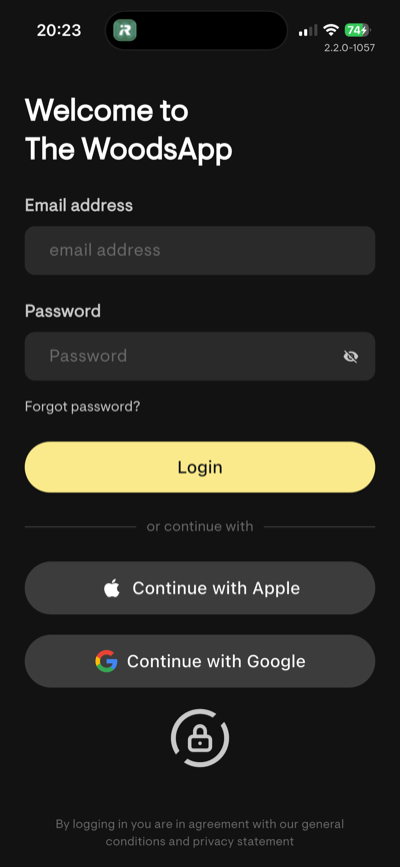
Steps:
- Tap Continue with Apple or Continue with Google.
- Pick the Apple or Google account that uses the same email we have on file for you. If Apple or Google ask you for permissions along the way, accept them.
- If everything matches, you land on your dashboard. Done.
- If the email doesn't match, WoodsApp walks you through the alternative login below.
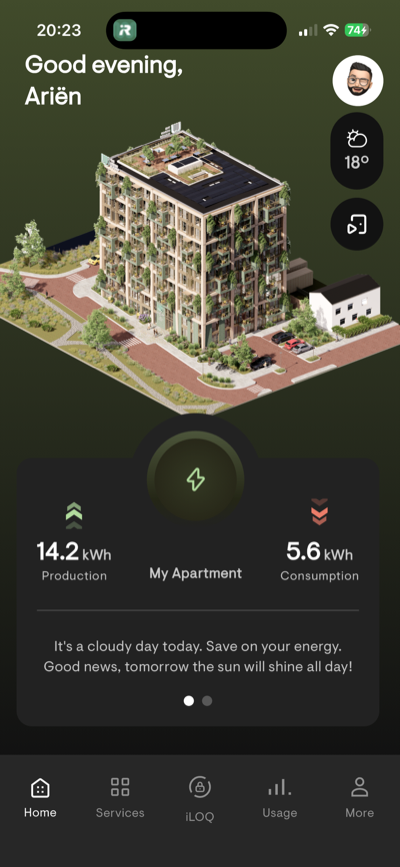
Alternative login — when your email isn't on file
No drama. We'll link your Apple or Google email to your account on the side.
- Type your house number and last name exactly as they appear on your subscription.
- We send a verification code to the email we already have for you.
- Open that email, copy the code, paste it into WoodsApp.
- Your new email is now linked.
- WoodsApp logs you out. Log back in with Continue with Apple or Continue with Google — this time it'll work, and you land on your dashboard.
If something doesn't click:
- Double-check the spelling of your last name and the format of your house number.
- Peek in your spam or junk folder for the code.
- Still stuck? Drop us a line and we'll click-click sort it.
Prefer email and password?
You can use that too. No password yet? No problem.
- On the login screen, tap Forgot password.
- Type the email you used to sign your subscription. Share your home? Your co-tenant's email works just as well.
- We send a 4-digit code to that email. Open it and type the code into WoodsApp.
- Pick a new password — at least 12 characters, with lowercase, uppercase, and numbers. You're in.
3. Your phone is now an iLOQ key
The Woods run on iLOQ, a digital locking system. Your phone opens the building and your own apartment — securely, no metal to jingle.
A few things to know about your keys:
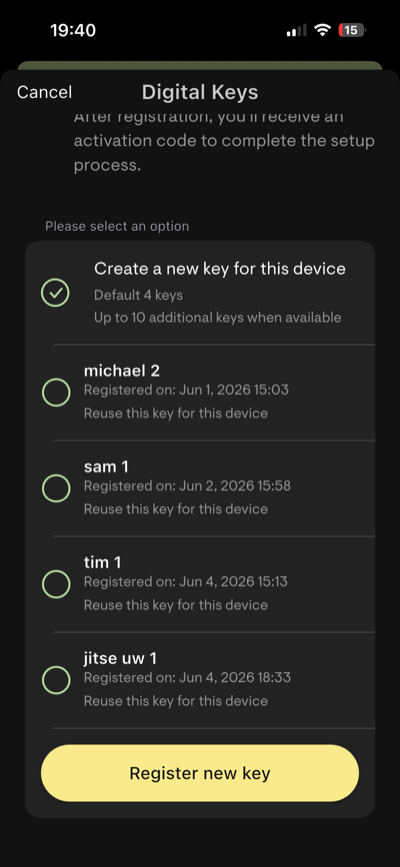
- Every apartment comes with 2 digital key registrations as standard. You assign them through WoodsApp.
- Need more? Add up to 2 extra digital key slots per apartment in WoodsApp, for a monthly fee.
- Prefer something physical? After moving in, you can order an iLOQ key fob — a pocket-sized alternative to your phone — for €122.50 per fob.
Ready to turn your phone into a key? Follow the steps below.
- From your dashboard, tap iLOQ.
- Start registration. We email you a registration link — open the email and tap the link.
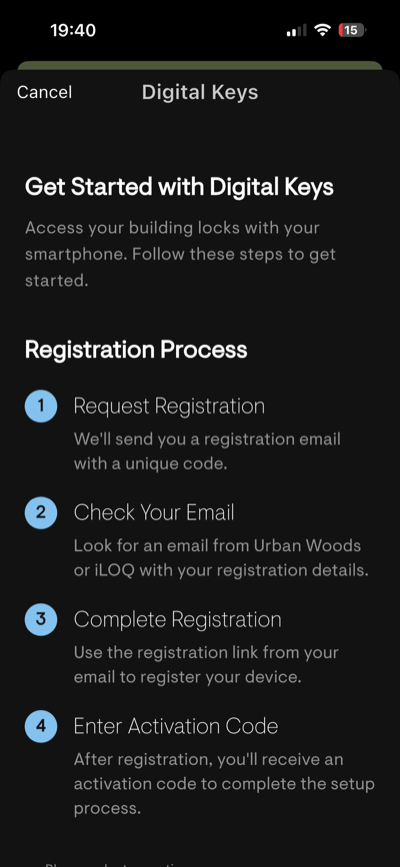
- WoodsApp now asks for a one-time code to link your phone to iLOQ. The code lands by email or SMS. Pop it in.
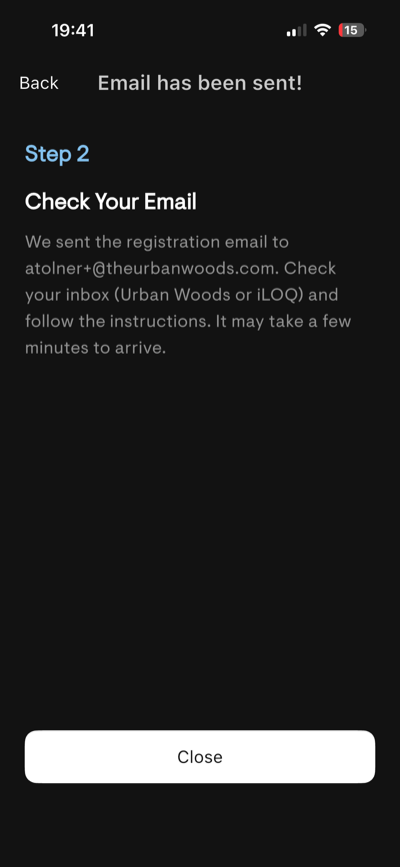
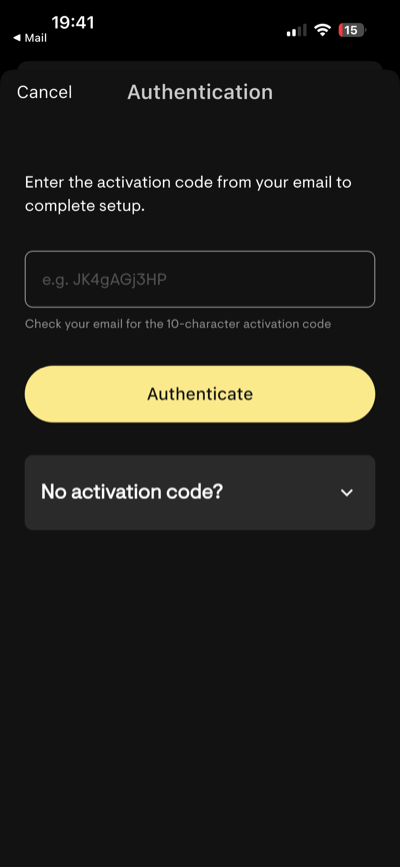
- Scroll to the list of key slots. Pick a free slot, or overwrite one you don't use anymore.
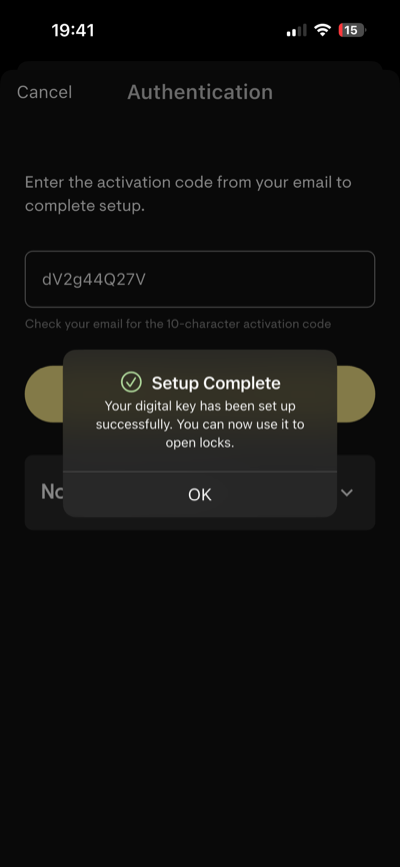
- Finish activation. You'll get a "setup complete" tick.
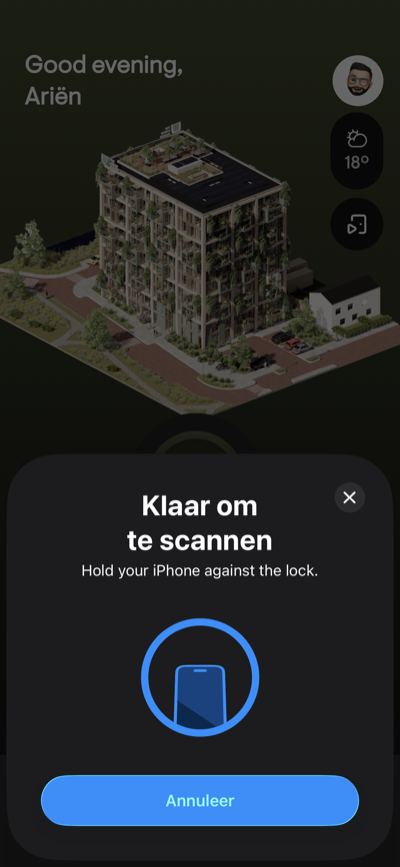
- Back in WoodsApp, tap iLOQ again to open the scan page. Hold your phone against a lock you have access to — the front door is a good first test.
A couple of nudges:
- iLOQ sends two messages: the registration link and the one-time code. Finish both, or the loop stays open.
- Say yes to Bluetooth and notifications when asked. Without them, locks won't talk to your phone.
4. Your phone is now your intercom
When the front gate buzzes, your phone rings. Tap to see who's there. Tap to let them in.
- From your dashboard, tap the Intercom icon (sits near your profile and the weather card).
- Tap Register this device. Confirm with the green Register this device button.
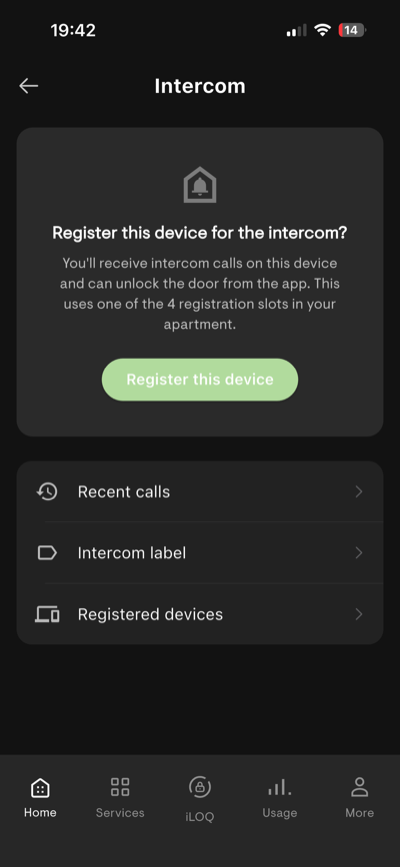
- Once registered, Main Entrance appears with two big buttons:
- Video call — see who's at the door.
- Unlock — open it.
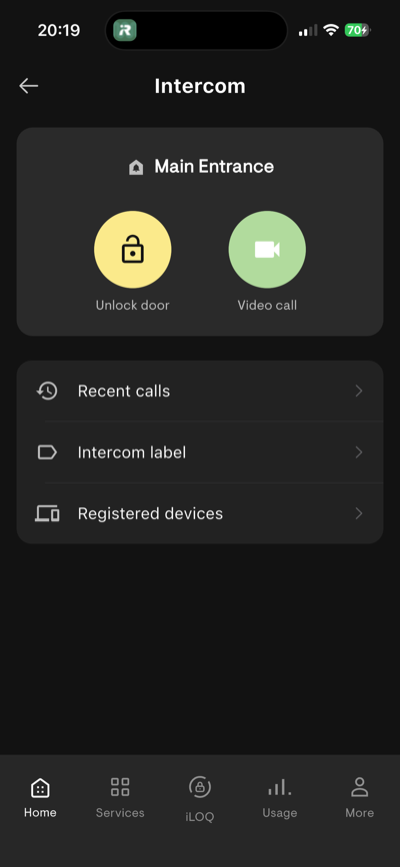
- Test both. Tap Video call to check the camera. Tap Unlock to make sure the door pops.
Allow camera, microphone, and notification permissions when asked. Without them, calls and video go quiet.
That's it. A key, an intercom, and a dashboard — all in one pocket. Welcome to the wood life.
Want WoodsApp in Dutch instead of English (or the other way around)? Head over to Switch language.